Overview
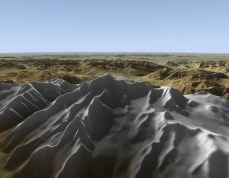
Unlike many flight simulators, Tacview does not try to project a spherical terrain on a flat surface. It uses a true spherical earth instead. Like Google Earth, Tacview is able to display the earth in its whole like it is in real life!
The terrain of Tacview is made of layers. From the lowest resolution (ETOPO1) to the highest resolution (SRTM1), Tacview engine automatically displays the most appropriate level of detail depending on current zoom level and data available. For example: When a required hi-res SRTM1 tile is not available, Tacview tries to display the corresponding med-res SRTM3 tile. If no SRTM3 tile is available, it falls back on the default low-res ETOPO1 base map...
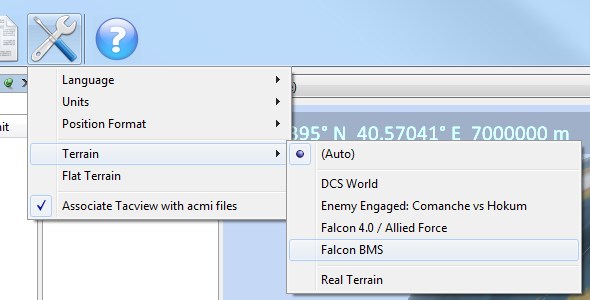
You can let Tacview automatically choose the most appropriate layer set according to the flight data source. Or you can force a specific layer set by using the appropriate option. Falcon 4 theaters are also natively supported, and new ones can be integrated in just a few minutes by adding a declaration in the appropriate .xml file. It is also very easy to download and install additional EECH and real-life terrains: Just have a look in the add-ons section!
Custom Texture Tiles
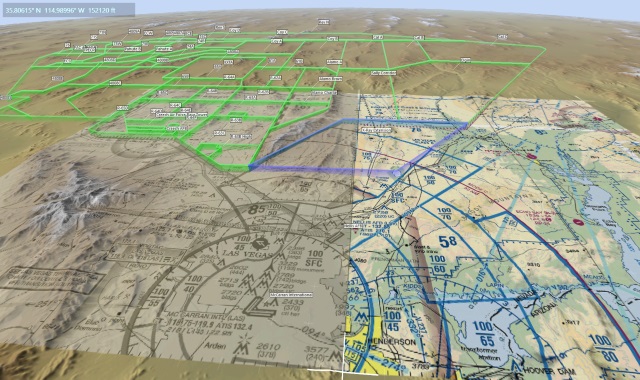
The simplest way to display custom ground textures is to store tiles of 1 by 1 degree in the %ProgramData%\Tacview\Data\Terrain\Textures\ or %APPDATA%\Tacview\Data\Terrain\Textures\ folders.
You must follow the same naming convention as SRTM3 and SRTM1 files. For example, to replace the north-west corner of Corsica you should create a tile named: C:\ProgramData\Tacview\Data\Terrain\Textures\N42E008.png
Yes! Feel free to install and have a look at the official NTTR (Nevada) demo in the add-ons section.
General Questions
- ETOPO1 worldwide base map (Tacview Standard or above required)
- DCS: Caucasus Map
- DCS: Syria Map
- DCS: The Channel Map
- DCS: Persian Gulf Map
- DCS: Normandy 1944 Map
- DCS: NEVADA Test and Training Range Map
- BMS: Korea
- BMS: Balkans
- BMS: Israel
- BMS: Pillars of Hercules
- BMS: Aegean
- BMS: Ostsee
- BMS: NTO Polar Vortex
- BMS: Kurile Island
- IL-2: Battle of Kuban
- IL-2: Battle of Moscow
- IL-2: Battle of Stalingrad
- IL-2: Velikie Luki
- IL-2: Rheinland
- IL-2: Prokhorovka
- IL-2: Arras
Because of the overlap between several Falcon 4.0 theaters, the following terrains are installed in a disabled state by default. You can easily enable these terrains by following the provided instructions. Do not forget to disable any conflicting theater to ensure proper telemetry and 3D view display.
- BMS: East Mediterranean Front
- BMS: Ikaros
- BMS: Falcon Online RedFlag RP6
- IL2: Lapino
- IL2: Novosokolniki
You can find real-life and Microsoft Flight Simulator terrains in the add-ons section. If your favorite region is missing, you can easily add it yourself by following the instructions below. All EECH theaters are available in the add-ons section too and can be installed in just a few clicks! (See below for more information)
How to extend the existing terrain?
The ETOPO1 worldwide base map is an exclusive feature of Tacview Standard and above. If you are using Tacview Starter, you may consider buying one of the improved editions of Tacview to enjoy the worldwide base map when not in high detail zones.
You can easily activate any provided theater or add your own Falcon 4.0 theater to Tacview by following the provided instructions.
Tacview natively supports SRTM1, SRTM3, and SRTM30 files and automatically fills invalid data (holes) using ETOPO1 data. All you have to do is to download the tiles of your choice, unpack the .zip archives and install the resulting files in the appropriate folder:
- SRTM1 .srtm files must be placed in %ProgramData%\Tacview\Data\Terrain\SRTM1\ or %APPDATA%\Tacview\Data\Terrain\SRTM1\
- SRTM3 .srtm files must be placed in %ProgramData%\Tacview\Data\Terrain\SRTM3\ or %APPDATA%\Tacview\Data\Terrain\SRTM3\
- SRTM30 .Bathymetry.srtm files must be placed in %ProgramData%\Tacview\Data\Terrain\SRTM30\ or %APPDATA%\Tacview\Data\Terrain\SRTM30\
When adding SRTM1 terrain to Tacview, is it also recommended to add the equivalent SRTM3 terrain to ensure nice transitions when zooming in and out. Because picture is worth a thousand words, you may want to have a look at a quick video tutorial available on YouTube.
Because of the radar technique used during Shuttle Radar Topography Mission, canyons and mountains can contain quite a lot of holes. Tacview is doing its best by filling holes using the available low-resolution ETOPO1 data. However this does not always give perfect results. This is why, you may want in some cases, to download pre-filtered data or to use a dedicated program to filter terrain data in a smarter way.
The first thing to do is to look for pre-filtered data on Jonathan de Ferranti's web site. These data are cleaned-up using topographic data coming from several alternate sources and usually gives great results.
If you can't find any pre-filtered data or you are not happy with the ones provided, you may want to try a filtering program such as Blackart. Even if this program is really awful to use, it gives impressive results! Here is the how to use Balckart:
- Select File | Batch Mode Interpolate | SRTM to SRTM
- Add your SRTM files to the list
- Press [Continue]
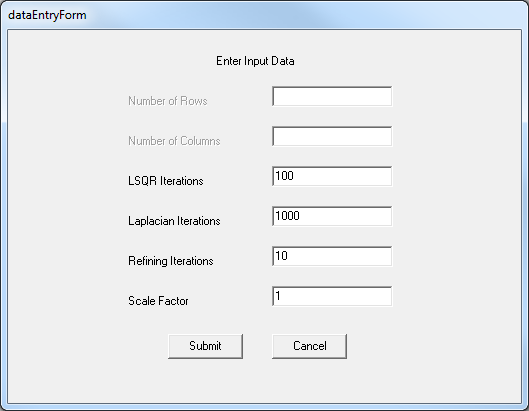
- Set LSQR Iterations to 100
- Set Laplacian Iterations to 1000
- Reset the Scale Factor to 1 (because the decimal separator may not be properly handled)
- Click on [Submit], accept the default -32000 value for null data then [Submit]
- Select Run | Run Blackart
- Copy the resulting files in the appropriate Tacview folder and rename them from .hgx to .hgt
To reduce the installer size, EECH terrains are not included within Tacview by default. You need to download the EECH maps from the add-ons section. Unpack the .zip file and copy the resulting .hgt files in %ProgramData%\Tacview\Data\Terrain\EECH\ or %APPDATA%\Tacview\Data\Terrain\EECH\. Then, in Tacview, make sure that the terrain option is set to either Auto or EECH.