Overview
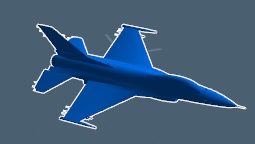
In older versions of Tacview, aircrafts were displayed using generic triangle shapes. Now they are displayed using nice 3D objects making the battlefield simpler to understand from any range!
Since Tacview 1.2.7, more than 60 objects have been added to represent varied aircrafts, weapons and ground units. You will see aircrafts from the P‑51 to the Su‑34, helicopters, heavy bombers, and transporters including the famous E-3 AWACS. There are also ground vehicles and weapons like tanks, missiles, and trucks.
You can replace or add your own 3D objects so they will be displayed in place of the default ones during playback.
It is very important that you do not try to match Tacview 3D objects names in your flight recordings! If you do so, you will end with a mess during the flight replay, not knowing what is what... You should let Tacview trying to find the best 3D object for YOUR aircraft. For instance, if there is a Cheetah C aircraft in your file, Tacview is going to use a Mirage 2000 3D object to represent it in the 3D view because this is the closest 3D object to the Cheetah it has in stock.
If at some point, there is an aircraft (or any other vehicle) with can be better represented in Tacview, feel free to send me your flight recording, your suggestions and possibly a 3D object you would like to see in Tacview. I will do my best to improve Tacview so it will either use a better or your favorite 3D object for this specific aircraft. This is important to proceed like this, so we can improve Tacview while keeping flight recordings clean.
3D object donations are welcome! Make sure they are complying with the following rules, and keep the amount of triangles relatively low to guarantee good performance (typically less than 4000 triangles per object).
How to import my own 3D objects?
You can add new 3D objects to Tacview or replacing existing ones yourself!
You have first to create or obtain a 3D object saved in the Wavefront .obj file format. How to create or convert 3D objects to such format is beyond the scope of this article. Feel free to browse Internet to find free objects and technical articles about how to create and convert 3D objects to the .obj file format.
To add or replace objects in Tacview, put your .obj file in the folder:
%ProgramData%\Tacview\Data\Meshes\ or %APPDATA%\Tacview\Data\Meshes\
- f-5.objRelease Date: Wed, 10 Sep 2014File Size: 68.9 KB
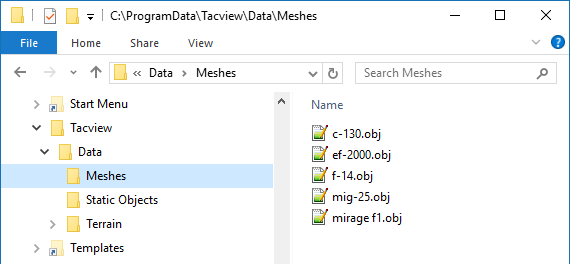
Then create an standalone .xml file with a unique name similar to the below example and place it in the folder:
%ProgramData%\Tacview\Data\Database\Default Properties\ or %APPDATA%\Tacview\Data\Database\Default Properties\
See our Github repository for more examples.
                            <?xml version="1.0" encoding="UTF-8" standalone="yes"?>
                            <DefaultPropertiesCollection LoadingOrder="1.0">
                                <DefaultProperties Id="FixedWing.F-5" Base="FixedWing.Fighter.Jet">
                                    <Criteria>
                                        <Name>F-5</Name>
                                        <Name>F-5 Freedom Fighter</Name>
                                        <Name>Northrop F-5</Name>
                                    </Criteria>
                                    <Properties>
                                        <ShortName>F-5</ShortName>
                                        <LongName>F-5 Freedom Fighter</LongName>
                                        <FullName>Northrop F-5 Freedom Fighter</FullName>
                                        <Shape>F-5.obj</Shape>
                                    </Properties>
                                </DefaultProperties>
                            </DefaultPropertiesCollection>
What are the restrictions?
Please make sure your .obj files are complying with the following rules:
- The filename is case sensitive.
- It is recommended that the filename is the short ICAO / NATO code of your aircraft (e.g.: f-16.obj, Su-27.obj, f-15d.obj, c-152.obj).
- The folder name is case sensitive, it is important to not forget to capitalize its words such as: \Data\Meshes\
- The object scale is in meters.
- The orientation has to be: -Z Forward, Y Up.
- The object center has to be the center of mass of the aircraft or ship. For ground vehicles, the center has to be the middle of the vehicle at the ground level (bottom of the wheels).
Also, keep in mind the following limitations:
- Quads are not supported (only the first half of each is going to be displayed).
- To ensure consistent rendering quality, normals are ignored and recalculated by Tacview.
- For aesthetic reasons, materials are ignored. Your object is not going to be textured. Since transparent surfaces are going to be rendered as opaque, remember to remove any transparent surface like rotating propellers before exporting your object.