Localizing Tacview

Your native language is not yet available? You have noticed some typos you would like to see fixed? Then you are at the right place! With its support for UTF-8 and its cleanly organized XML files, Tacview is super easy to localize in any language. In just a few steps you can add a new language or fix an existing one.
Please note that because of technical limitation of the current 3D renderer, the most exotic characters are not yet available in the 3D view (typically asian characters). This limitation will be removed as soon as Tacview 2.0 new renderer is released.
How to add a brand new language to Tacview?
If your favorite language is not yet supported by Tacview, you will have to start by producing a first draft based on the reference English files like explained below. As soon as your draft is working enough, feel free to contact me so I can do a technical validation and add the appropriate option in Tacview.
Please read the following instructions to understand how to access, create and modify Tacview localization files.
How to improve an existing language localization?
All Tacview localization files are available in a GitHub public repository. You can easily grab the existing files to either add a new language based on the reference English files or to fix existing localization files.
- To download and upload the localization files you will need the GitHub Desktop application (you can work from the command line as well)
- To edit the XML text files, you need a raw text editor like Notepad++ (Microsoft Windows Notepad can do the job as well)
First, you need to create a GitHub account if you don't already have one. Then contact me so I can add you to the list of users who have write access to Tacview repository.
As soon as you have been granted access to Tacview repository you can start working on the files you want. It is quite easy to download Tacview files on your computer to modify them. To do so, unless you prefer the command-line, I suggest to use the GitHub application.
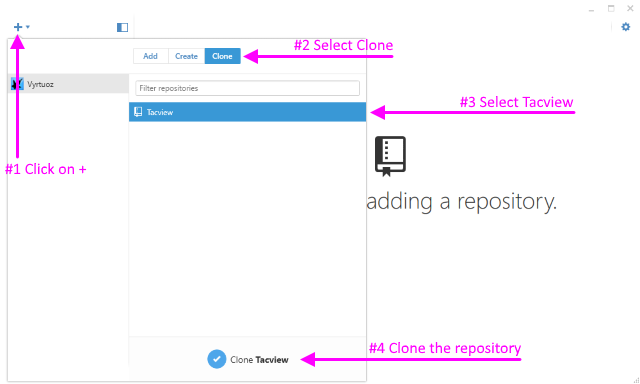
Click on the top left + icon, then select Clone -> Tacview. GitHub should now download all the necessary files on your computer.
You can start editing files as soon as they are installed on your computer (by default they will be installed in the %USERPROFILE%\Documents\GitHub\ folder). To ensure consistent quality, please observe the following rules:
- To preserve international characters, make sure you are using a raw text editor and you are saving any files using the UTF-8 format.
- While you can freely edit any string content, do not change strings ids (like ID="FileMenuTooltip"). They are used by Tacview to know which string to display.
- Parameters surrounded by curly brackets (like {0}) are going to be replaced by numbers and other texts by Tacview. Use common sense to properly place these dynamic parameters.
<?xml version="1.0" encoding="utf-8" standalone="yes" ?>

<!-- Tacview English Text -->

<Resources Language="en">
	...
	<String ID="OnlineDebriefingClientTip">Press Alt+Enter to switch to fullscreen mode</String>
	<String ID="OnlineDebriefingControlGivenTip">{0} is temporarily in charge of the debriefing</String>
	<String ID="OnlineDebriefingControlReceivedTip">You are temporarily in charge of the debriefing</String>
	...
</Resources>
You can easily test changes and corrections in most XML files by putting modified files in the C:\ProgramData\Tacview\Data\Xml\ folder. You will have to restart Tacview to see the changes.
Do not forget to remove these files as soon as your work is complete so you can enjoy the last official version of them next time you will install a new version of Tacview.
First, you need to create a GitHub account if you don't already have one. Then contact me so I can add you to the list of users who have write access to Tacview repository.
As soon as you have been granted access to Tacview repository you can start working on the files you want. It is quite easy to download Tacview files on your computer to modify them. To do so, unless you prefer the command-line, I suggest to use the GitHub application.
Click on the top left + icon, then select Clone -> Tacview. GitHub should now download all the necessary files on your computer.
If you are working on a brand new language not yet supported by Tacview, you will have to pretend that your files are in English (for example). You must suffix your filenames with the en language code and also update the language tag in the xml file <Resources Language="en">. Then follow the procedure described in the previous question to test your files.
When your work is ready to be officially added to Tacview, do not forget to switch back your filenames as well as your XML code to the proper ISO 639-1 language identifier.
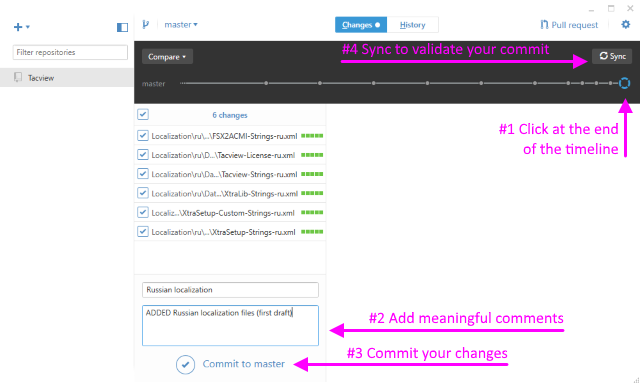
You can easily apply your changes to the public repository using the GitHub application. And depending on the timing, your changes should be visible in the next official release of Tacview.
General Questions
Of course! Tacview 2.0 will display a nice dedicated credits screen. Meanwhile, you are welcome to add your name in \Localization\Credits\Data\Xml\Tacview-LanguageOptions.xml.
You can try any XML validation tool available on Internet. If you still cannot find the error, feel free to share me the file so I can have a look at it.
You can easily apply your changes to the public repository using the GitHub application. And depending on the timing, your changes should be visible in the next official release of Tacview.
Tacview repository is monitored and any appropriate changes will be integrated as soon as possible. It takes time to properly merge or update data, but unless the latest version of Tacview is currently built to be released you should see your changes in the next official release.